How to Generate API Key on App Store Connect
Learn how to create an App Store Connect API key with App Manager access for seamless integration with ReTranslate AI. This guide will help you set up API authentication for automated app metadata translation and localization.
What You'll Need
To integrate ReTranslate with your App Store Connect account, you need to generate an API key. This key allows secure, automated access to your app metadata for translation purposes. You'll need:
- An active Apple Developer account
- Admin or Account Holder access to App Store Connect
- Access to the Users and Access section in App Store Connect
The process takes less than 5 minutes and involves three simple steps: copying your Issuer ID, generating a new API key with App Manager access, and downloading your private key file.
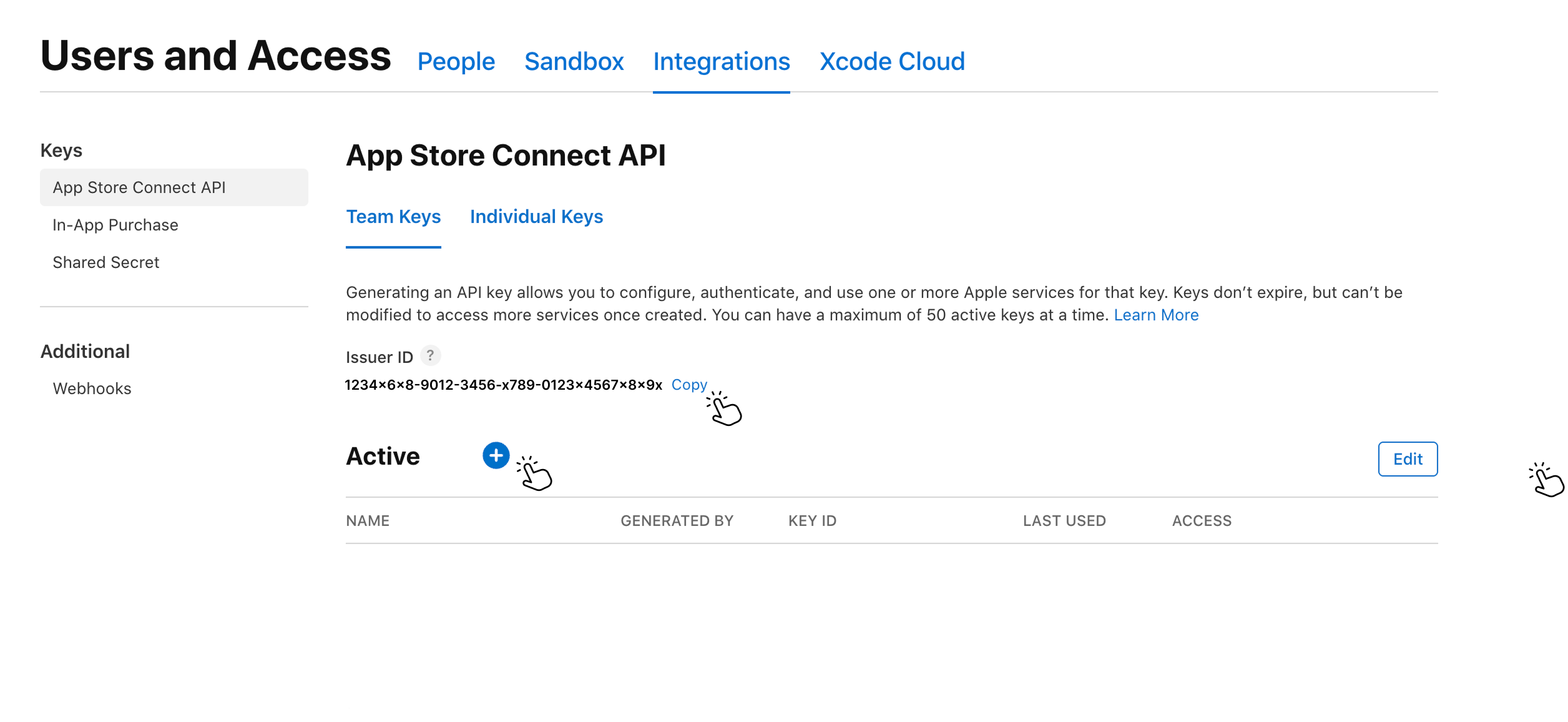
Step 1: Copy your Issuer ID, then click "+" to generate an API Key
First, navigate to App Store Connect Integrations and log in with your Apple Developer account. On the App Store Connect API page, you'll see your Issuer ID displayed near the top of the page. This is a unique identifier for your team and you'll need it to authenticate API requests.
💡 Tip: Click the "Copy" button next to your Issuer ID to copy it to your clipboard. You'll need to paste this into ReTranslate later.
After copying your Issuer ID, click the blue "+" button next to "Active" to begin creating a new API key. This will open the API key generation dialog.
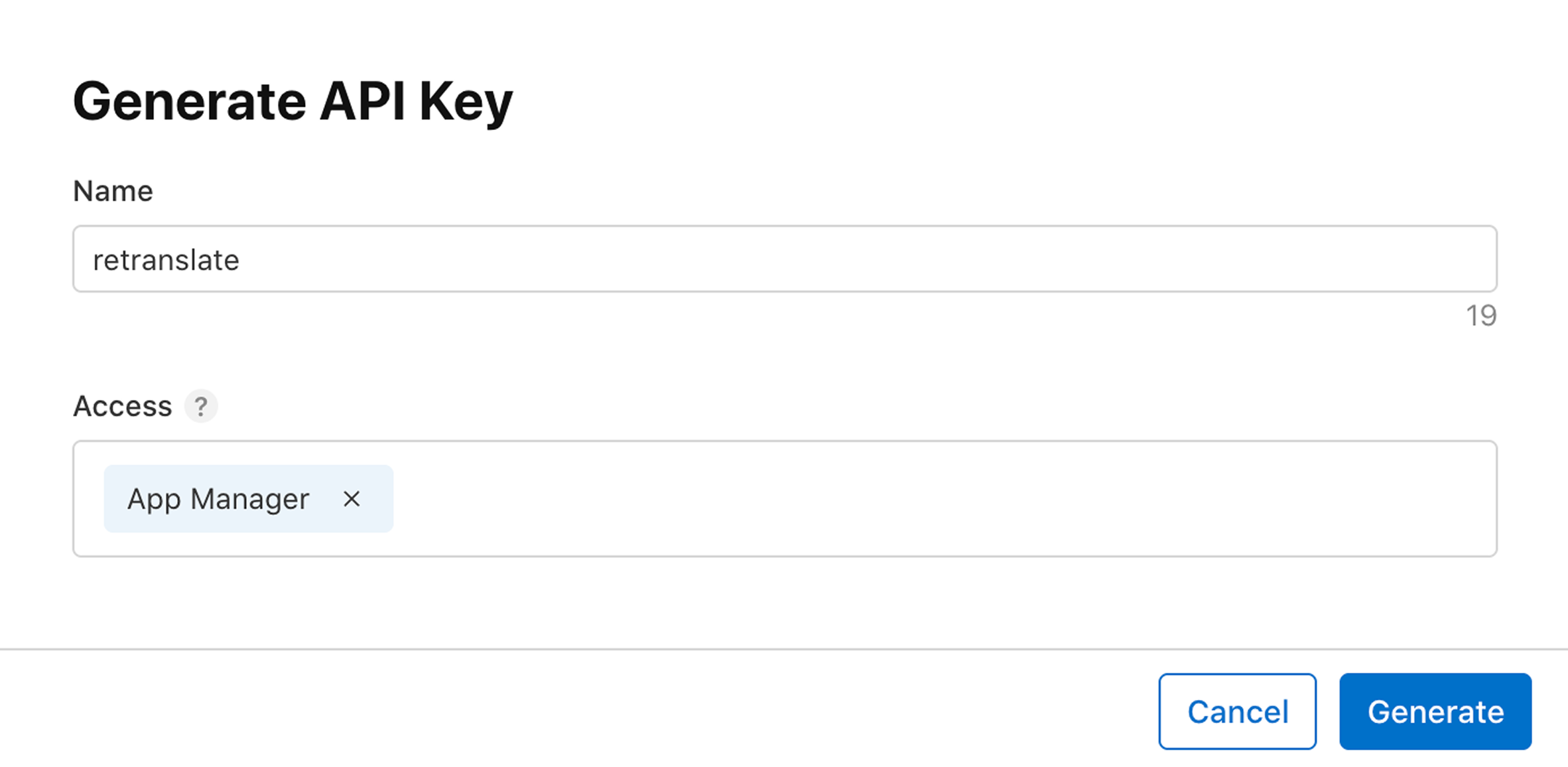
Step 2: Name it, select "App Manager" access, and click "Generate"
In the API key generation dialog, you'll need to provide a name for your API key and select the appropriate access level. For the name field, enter a descriptive name like "ReTranslate" or "App Localization Tool" so you can easily identify this key's purpose later.
For the access level, it's crucial to select "App Manager". This role provides the necessary permissions to read and update app metadata, including descriptions, keywords, and other localization content, without granting unnecessary administrative privileges.
⚠️ Important: Make sure to select "App Manager" access. Other access levels may not have sufficient permissions for metadata translation or may grant excessive privileges.
Once you've entered the name and selected App Manager access, click the "Generate" button to create your API key.
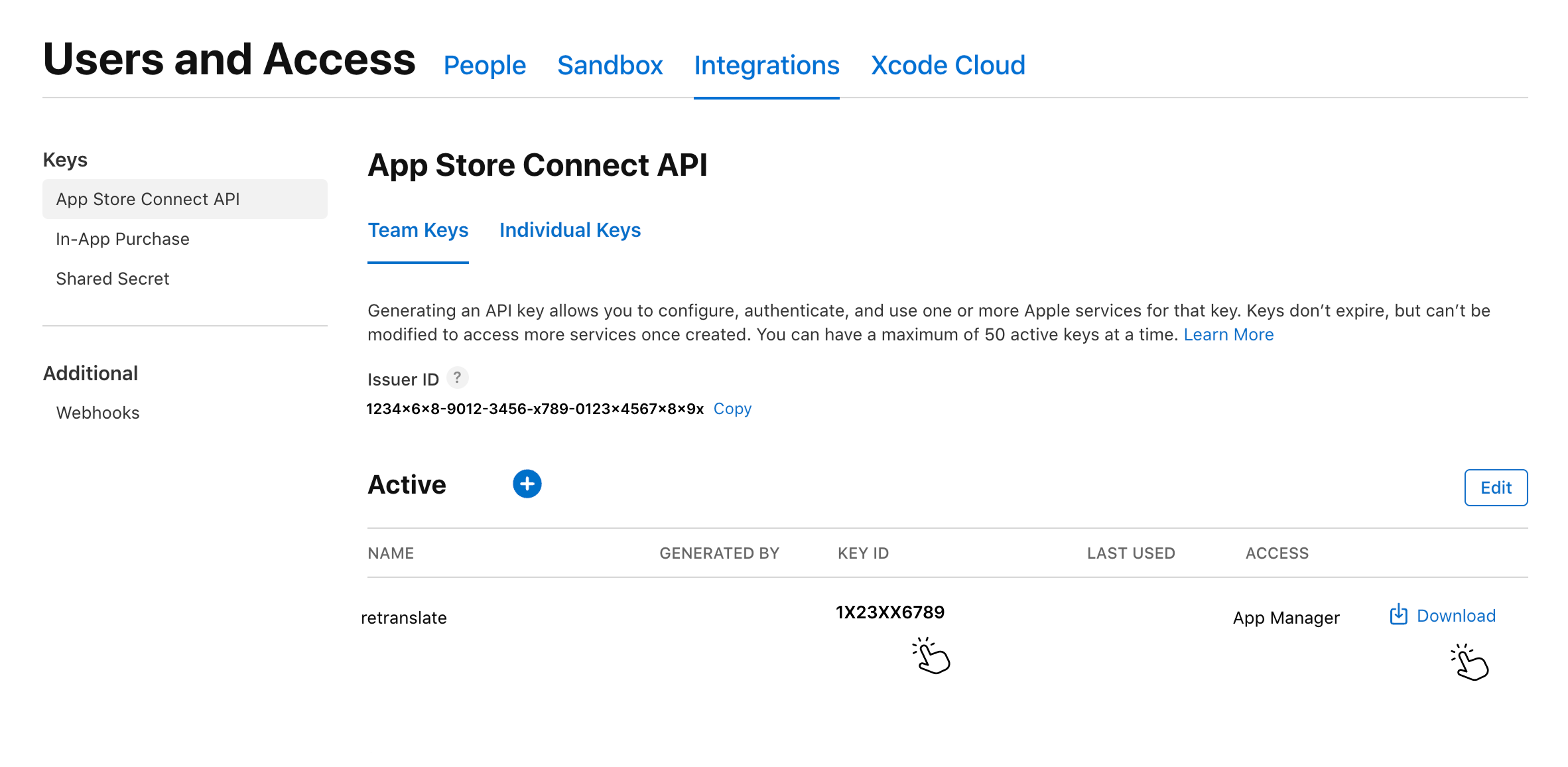
Step 3: Copy Key ID and download Private Key (.p8)
After generating your API key, you'll be presented with your Key ID and a "Download" button for your private key file. The Key ID is a unique identifier (usually a 10-character string) that you'll use alongside your Issuer ID to authenticate API requests.
🔐 Security Notice: You can only download your private key (.p8 file) once! If you lose this file, you'll need to revoke the current key and generate a new one. Store it securely.
Click the "Copy" button next to the Key ID to copy it to your clipboard, then click the "Download" button to save your private key file (it will have a .p8 extension). Keep this file safe—you'll upload it to ReTranslate to complete the integration.
Once you've downloaded the .p8 file and copied your Key ID, you have everything you need to connect ReTranslate to your App Store Connect account. Head back to ReTranslate and enter your Issuer ID, Key ID, and upload your private key file to complete the integration.
What's Next?
Now that you have your App Store Connect API credentials, you can integrate them with ReTranslate to start translating your app metadata:
- Open ReTranslate and navigate to the App Store Translator section
- Click "Connect App Store Connect" to open the integration dialog
- Enter your Issuer ID that you copied in Step 1
- Enter your Key ID that you copied in Step 3
- Upload your .p8 private key file that you downloaded in Step 3
- Click "Connect" to complete the integration
Once connected, ReTranslate will automatically import your app metadata and you can start translating to 40+ languages with AI-powered translations optimized for App Store search.